
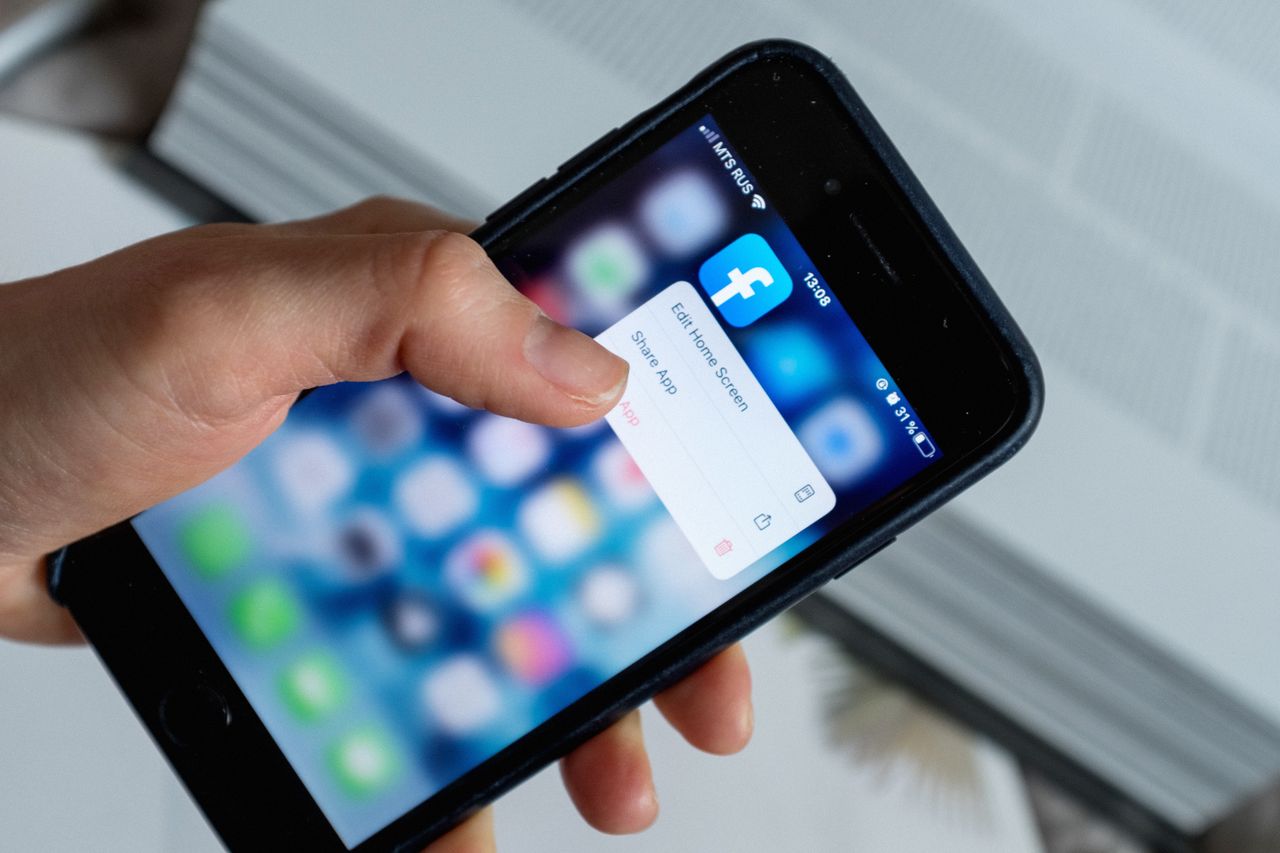
Need a break from Facebook but do not want to lose your photos, friends and Messenger chats forever? Deactivating your account is the answer. It hides your profile temporarily, and you can come back any time. This guide explains how to deactivate Facebook on a phone or computer, what happens when you do, and how deactivation differs from deleting your account.
Facebook occasionally changes menu names and layouts. If a step looks different, search for “deactivate” in Facebook’s settings or visit the Facebook Help Center.
Quick Answer
Go to Settings & privacy > Settings > Accounts Center > Personal details > Account ownership and control > Deactivation or deletion, choose your Facebook profile, select Deactivate account, then follow the prompts and enter your password.
How to Deactivate Facebook on the Mobile App
- Open the Facebook app and tap the menu (your profile picture or the three lines).
- Tap Settings & privacy, then Settings.
- Tap Accounts Center.
- Go to Personal details, then Account ownership and control.
- Tap Deactivation or deletion and choose the Facebook profile you want to deactivate.
- Select Deactivate account and tap Continue.
- Choose a reason, decide whether to keep using Messenger, enter your password and confirm.
How to Deactivate Facebook on a Computer
- Log in to Facebook and click your profile picture in the top right.
- Click Settings & privacy, then Settings.
- Open Accounts Center, then Personal details.
- Click Account ownership and control, then Deactivation or deletion.
- Select your profile, choose Deactivate account and follow the on-screen steps.
What Happens When You Deactivate Facebook?
- Your profile, photos and posts are hidden from other people.
- People cannot search for you, although some information, such as messages you sent, may still be visible to recipients.
- You can choose to keep using Messenger while your Facebook account is deactivated.
- Pages you manage alone may become inaccessible to others, so add another admin first if needed.
- You can reactivate at any time simply by logging back in.
Deactivate vs Delete: What Is the Difference?
| Deactivate | Delete | |
|---|---|---|
| Can you come back? | Yes, any time by logging in | Only during a short grace period after requesting deletion |
| Profile visible? | No | No, and it is eventually removed |
| Photos and posts | Kept, hidden | Permanently deleted |
| Messenger | Can keep using it | Account removed |
If you might want your account back, deactivate. If you want to leave permanently, download your information first and then choose deletion.
Before You Deactivate
- Download your information: save photos, posts and messages via the “Download your information” tool in Accounts Center.
- Check connected apps: apps and websites you log in to with Facebook may stop working.
- Update page admins for any Facebook Pages you manage.
How to Reactivate Your Facebook Account
Simply log in to Facebook or any app that uses Facebook login with your email or phone number and password. Your profile will be restored as it was.
Frequently Asked Questions
How long can my Facebook account stay deactivated? There is no set limit. Your account stays deactivated until you log back in, unless you chose an automatic reactivation period.
Can friends see that I deactivated my account? Facebook does not notify friends, but they may notice that your profile is no longer available.
Does deactivating Facebook deactivate Instagram? No. Instagram is a separate account, even if it is linked in Accounts Center. Learn more in our Instagram guide.
The Bottom Line
Deactivating Facebook is a quick, reversible way to take a break while keeping your data safe. Download your information first, decide whether you want to keep Messenger, and log back in whenever you are ready to return.
About the Author